 FingerKeys
日本語
Try it
A menu bar app for Macdraft
Gestures in. Keys out.
FingerKeys turns trackpad gestures into keyboard shortcuts. Swipe left with three fingers to go back. Which gesture sends which keys is up to you.
Every feature for 30 days. To keep using it, a one-time ¥500.
3-finger swipe left ⌘[ Back
3-finger swipe down ⌘W Close tab
3-finger double tap ⇧⌘R Reload
Draw a triangle with one finger ⇧⌘T Reopen closed tab
While 5 fingers touch Left ⌥ held down Talk while you hold
Example assignments. Press one to stop on it.draft
What it tells apartdraft
Nine kinds of gesture.
Each combination of fingers and movement can send one shortcut. Kinds other than swipes and taps are only looked for once you assign them, so the gestures you don’t use never get in your way.
-
Swipe
Slide your fingers up, down, left or right.
2–5 fingers
-
Tap, double tap
Tap lightly, or twice in a row.
2–5 fingers
-
Pinch
Spread or close your fingers.
2–5 fingers
-
Rotate
Turn your fingers right or left.
2–5 fingers
-
Edge swipe
Slide in from an edge.
1–2 fingers
-
Corner tap
Tap any of the four corners.
1 finger
-
Rest and tap
Rest a finger and tap with another.
2 fingers
-
Drawn shape
Draw a shape you registered.
1 finger
-
While touching
A key stays down while your fingers rest.
3–5 fingers
While touchingdraft
Rest your fingers, and a key stays down.
Rest three to five fingers on the trackpad and the key you chose is held down. Lift them all and it is let go.
Take voice input: assign the key that listens only while it is held, and you can talk while your hand rests on the trackpad.
Guards against a stuck key. The key is also let go when you pause FingerKeys, when the Mac sleeps or locks, when you quit, and after five minutes, even if your fingers are still resting.
Try it: the key is down only while you press the pad below.draft
The key is up
0.0 s
Settingsdraft
Assign on a picture of your trackpad.
Open Settings from the menu bar icon. Pick the place for a gesture, then record the keys you want it to send.

- Assigned keys show where the gesture is“⌘[ Back” sits where you swipe left. One look tells you what is assigned where.
- Gestures macOS uses are labelledA label such as “macOS: Mission Control” tells you up front that macOS already uses that gesture.
- Press a free place to assign itDashed places are still free. Press one and record the keys to send.
-
3-finger swipe left
- Safari⌘[
- Finder⌘[
- Other appsNothing
Works per app
Choose all apps, only these apps, or all but these apps. The same gesture can send different keys in different apps.
-
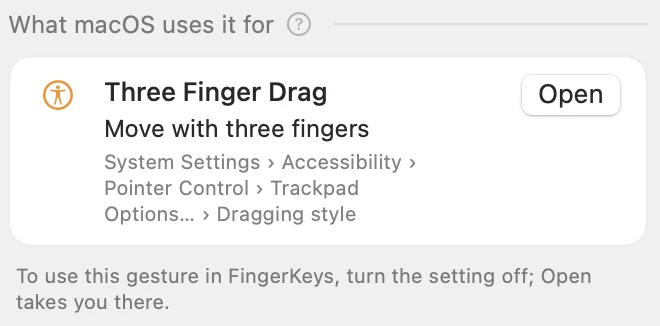
Tells you when macOS uses the same gesture
It names the macOS setting and shows where it lives in System Settings; Open takes you there. FingerKeys never changes macOS settings itself.
-
Less likely to fire under a resting hand
A hand left resting for a moment on the edge of the trackpad is not counted among a gesture’s fingers, and the press of a click is less likely to be taken for a “rest and tap”. It cannot tell every case apart.
Network and privacydraft
Online in two situations only.
FingerKeys has no analytics, tracking, advertising or crash-reporting code. It connects to the internet in these two situations.
Once a day if you allow automatic checks, and when you choose Check for Updates
Checking for updates
- The app’s name and version
On first launch, then once a day; also when you enter a key or remove this Mac
Checking your license or trial
- Your license keyOnly once you have entered one
- A code that tells this Mac apartMade so it can’t be turned back into the Mac’s ID
- The app’s version
Never sent
- What you typeThe only keys it reads are the ones you press in its own window while recording a shortcut
- Your email address and nameThe app never sends them
- Your gestures and shortcuts
- Which apps you use, and your historyWhich app is in front is looked at on your Mac only
- Your Mac’s model
- Camera, microphone, location, screen contentsNot used
Like any request on the internet, these reach the server with your IP address and language settings. The only permission FingerKeys needs is Accessibility; Input Monitoring is not needed. More about privacy
Pricedraft
¥500, once.
One-time purchase, no subscriptiontax and other currencies: to be decided
¥500
The first 30 days are free, with every feature. Priced in Japanese yen.
- 30daysto try every feature
- 3Macson one license key
- 14daysoffline, once licensed
After you buy, you get a license key. A button on the purchase page activates the app without typing the key.
Requirementsdraft
- macOS
- macOS 14 or laterdraftDeveloped and tested on macOS 27.2.
- Trackpad
- A Magic Trackpad. A MacBook’s built-in trackpad is meant to work toodraftTested with a Magic Trackpad 2. The built-in trackpad has not been tested yet.
- Permission
- AccessibilityInput Monitoring is not needed.
- Languages
-
- 日本語
- English
- 简体中文
- 繁體中文
- 한국어
- Deutsch
- Français
- Español
- Get it
- Download from this siteNot on the Mac App Store.
- Updates
- Checked and installed from inside the appSignatures are verified before anything is installed.
Questionsdraft
Before you buy, the things people ask.
What happens when the trial ends?
Gestures stop. Your settings stay as they are, and entering a license key brings everything back at once.
How many Macs can I use one license on?
Up to three. To move to another Mac, use “Remove This Mac” in the app.
Does it need an internet connection?
Yes, to start the trial and to activate a license key. Once licensed, it keeps working for 14 days after the last successful check; if it stops after that, it comes back by itself when you reconnect.
Why does it need the Accessibility permission?
For three things and nothing else: to receive gesture events from the trackpad; to hold back the scrolling made by the fingers of a gesture you assigned (three or more fingers); and to send your shortcuts to the app in front.
It does not need Input Monitoring.
Does it read what I type?
No. FingerKeys receives trackpad gestures and scrolling only, never key presses.
There is one exception: while you record a shortcut, it reads the keys you press in its own settings window.
Will macOS gestures such as Mission Control stop working?
No, they keep working. If you assign the same gesture, both can act at once, so the settings window points out the overlap and opens the place in System Settings where macOS sets it.
Can three-finger gestures fail to work?
With Three Finger Drag switched on, macOS uses three fingers for dragging. Assign a four-finger place without the ⚠ mark instead; the settings window shows which ones are free.
What if a “While touching” key seems stuck?
Press the same key on your keyboard once. Normally FingerKeys lets the key go by itself: when you pause it, when the Mac sleeps or locks, when you quit, and after five minutes.
Is it on the Mac App Store?
No. You download it from this site, and updates install from inside the app.
Can I get a refund?
Because you can try every feature for 30 days first, purchases are, as a rule, not refunded. If something is wrong, for example the app does not work, write to support@fingerkeys.app. We will handle it case by case.